
Monitor Impact on Overall Status
Not every outage should flip your entire status page into an outage.
Monitor impact lets you choose how each monitor contributes to:
- Your overall status banner (top of the page)
- Component group status badges
- Global uptime calculations
This is especially useful for “informational” monitors (e.g., a healthz endpoint, an internal admin panel, or a non-critical dependency) that you still want visible, but don’t want to dominate your public status.
Where to Configure It
- Go to Monitors → Edit (or create a new monitor)
- Find Impact on overall status
- Choose one of the impact modes below
- Save the monitor
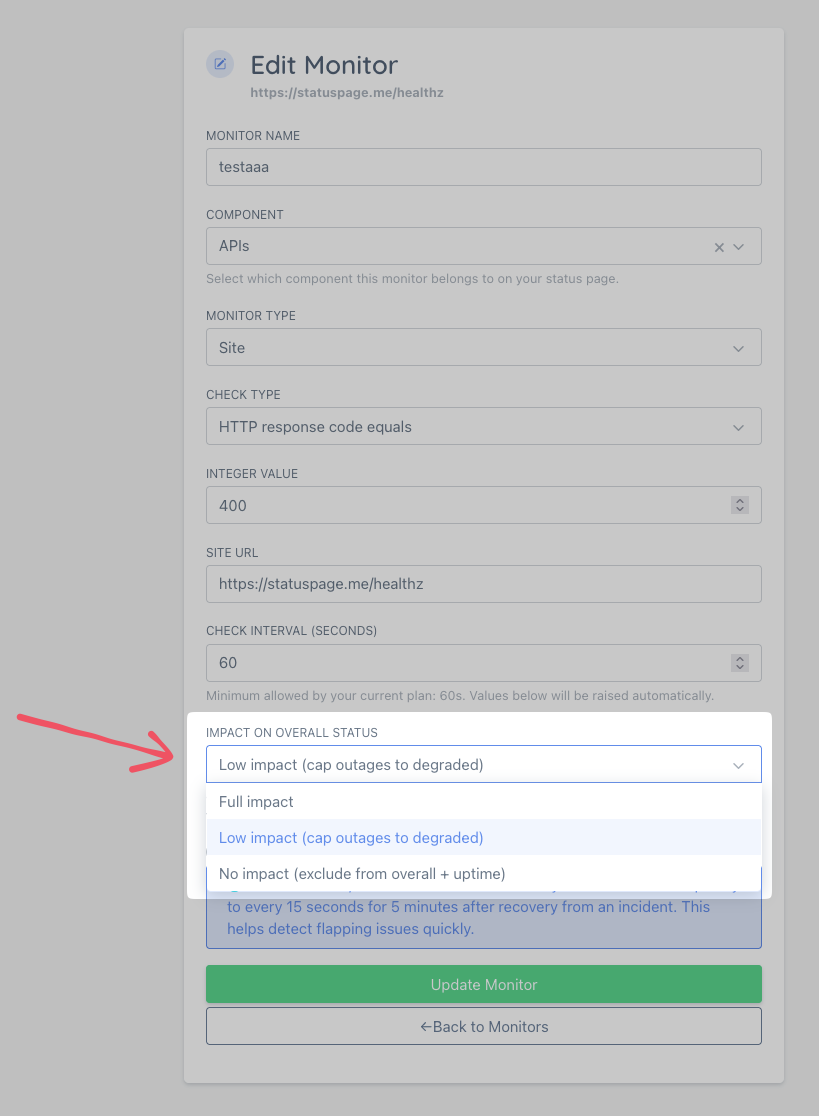
Impact Modes
| Mode | What it does | When to use |
|---|---|---|
Full impact (full) | Monitor affects overall + group status normally | Core customer-facing services |
Low impact (degrade_only) | Caps a down monitor’s contribution to at most Degraded (it can’t create an outage state by itself) | Informational monitors you still want visible |
No impact (none) | Excludes the monitor from overall + group status and from global uptime calculations | Internal/optional systems you never want to influence the public “overall” state |
Notes:
- The monitor still displays its own state on the status page. Impact only changes how it contributes to rollups.
- If you previously used “Exclude from overall”, it maps to No impact.
“Softened Impact” Badge (Group Headers)
When impact settings cause a component group’s displayed state to be better than it would have been with full impact, the group header can show a second pill (for example Low impact).
This badge is shown only when impact changes the displayed state.
Customizing the badge label
You can choose the label text shown on that badge:
- Low impact
- Non-critical
- Informational
Go to Status Pages → (select a status page) → Settings and set Softened impact badge label.
Incidents Override Impact Caps
Active incidents always take precedence.
That means:
- If there’s an active incident affecting a component, the status page can still show an outage-level state even if the underlying monitor is set to Low impact or No impact.
- Use incidents when you need to communicate a real customer-impacting issue, regardless of monitor impact settings.
See: Creating and Managing Incidents
Best Practices
- Use Full impact for the few services users care about most.
- Use Low impact for monitors that are helpful context but shouldn’t dominate your public status.
- Use No impact for internal-only systems or “FYI” checks that you never want to influence uptime/overall state.